
Anime AI Video Generator: Keeping Line and Colour Alive in Motion
An anime AI video generator has less room to hide than a photoreal one. Three style attributes decide whether a still survives five seconds of motion — pick them before you generate.
On this page
# Anime AI Video Generator: Keeping Line and Colour Alive in Motion
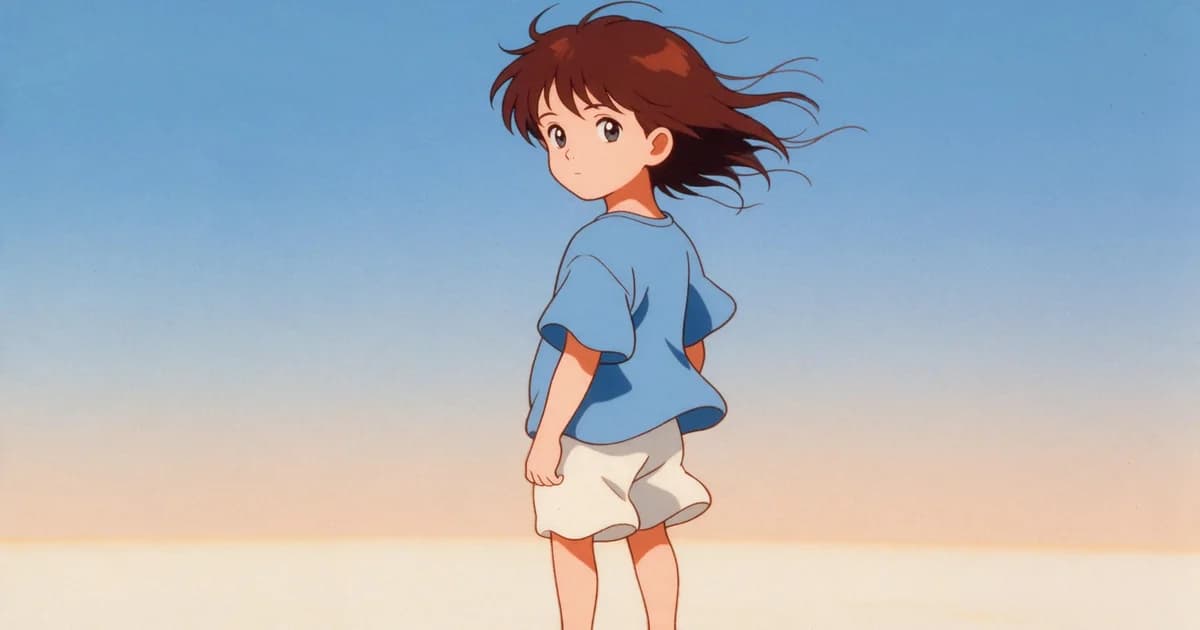
An anime AI video generator has less room to hide than a photoreal one. A cel-shaded character is made of hard outlines and flat colour fields, and both are read instantly: a line that shifts by a pixel between frames is visible, and so is a shadow that changes tone. That is why a clip that looks convincing in photoreal needs its settings chosen more carefully in anime — and why those settings are worth learning once.
"Anime" is not one style
Ask for "anime" and you get an average of everything: modern TV cel shading, 90s OVA gradients, chibi proportions, 3D toon rendering. The result is a soft, generic look that satisfies nobody. Style is better specified as a handful of concrete attributes.
| Attribute | Options that read clearly | Effect on motion |
|---|---|---|
| Line | hard black outline / soft coloured line / none | Hard outlines amplify any wobble; soft lines absorb it |
| Shading | flat cel / two-tone cel / painted gradient | Flat cel is the most stable across frames |
| Era | 90s OVA / modern TV / painterly film | Older styles tolerate grain; modern styles demand crispness |
| Proportion | realistic 7-head / stylised 6-head / chibi 3-head | Chibi absorbs anatomy errors, realism exposes them |
| Rendering | 2D cel / 3D toon | 3D toon holds volume better in motion |
Two of these decide whether the clip works. Hard black outlines are the least forgiving thing you can ask for in video, because every frame is a fresh drawing. Stylised proportions absorb limb errors that realistic proportions turn into horror.
If you want a clean first pass, ask for soft or coloured linework, flat two-tone cel shading, and slightly stylised proportions. That combination is effectively a "stable anime" preset.
Five variables that keep anime consistent
Line boil. Outlines shimmer because each frame redraws them independently. It shows up most with high-contrast line art, fast motion and long durations. Soft lines, short clips and a static camera all reduce it.
Face drift. Anime faces carry little detail — eyes are large flat shapes, so a small shift changes the expression entirely. Photoreal faces absorb small shifts; anime faces show them.
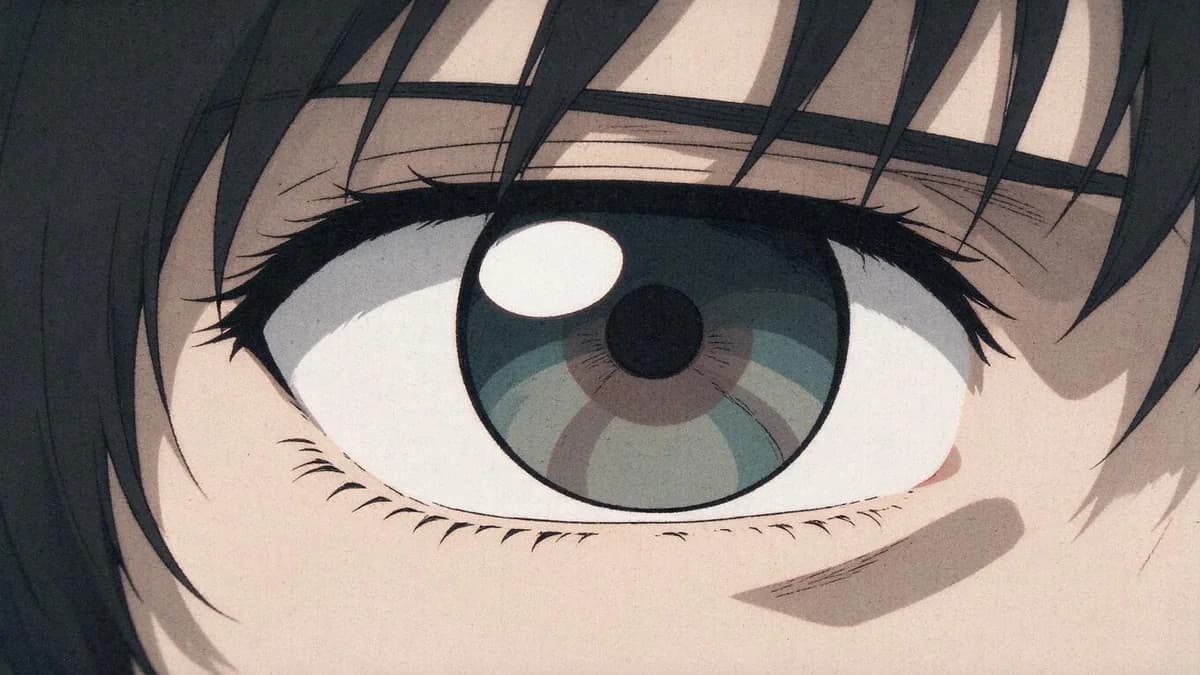
Banding on flat colour. A photoreal image has texture to hide compression and generation noise. A flat cel field has nothing, so every artefact is visible. Ask for subtle grain, and output at 1080p rather than 720p.
Hair and cloth in motion. Long hair and loose fabric are where motion is hardest to hold, because the model has to invent their movement. Keep hair tied or short, keep clothing close to the body.
Style drift over time. A clip can start as cel-shaded anime and end closer to semi-realistic rendering. This is duration-dependent: five seconds holds, ten often needs a stricter setup.
The pattern across all five is the same — shorter, simpler, softer. Anime rewards restraint more than photoreal does.
Step by step
- Start from a strong still. A clean anime-style illustration, uncluttered background, one clear subject. If your source is a photo, convert it to anime style first and check the conversion before animating.
- Fix the framing in the prompt. "Medium shot, character centred, waist up, static camera" stops the model inventing a zoom, which is the fastest way to destroy line consistency. When the character walks, turns, or needs their feet on the ground, switch to "full body in frame, feet inside the frame" instead — the redraw area grows, so keep the motion smaller.
- Name one motion. "Hair moves gently in the wind, eyes blink once, subtle breathing" is a complete animation brief. Anime scenes rarely need more than two motions.
- Generate at five seconds. Ten seconds is where style drift and line boil become hard to control.
- Check the first, middle and last frame. Look at the jaw line and the edge of the hair. If the jaw has thickened or doubled, rerun rather than continue.
- Output at 1080p for flat colour. Banding is worst at 720p on large flat fields.
- Save immediately. Keep a local copy of anything you intend to use; file names that carry the style, framing and duration make the next run repeatable.
Prompt patterns that hold
| Scene | Prompt |
|---|---|
| Portrait, subtle life | "anime medium shot, character centred, hair sways gently, single blink, static camera, flat cel shading, soft outline" |
| Wind | "anime wide shot, coat and hair move in wind, background clouds drift slowly, static camera, two-tone cel" |
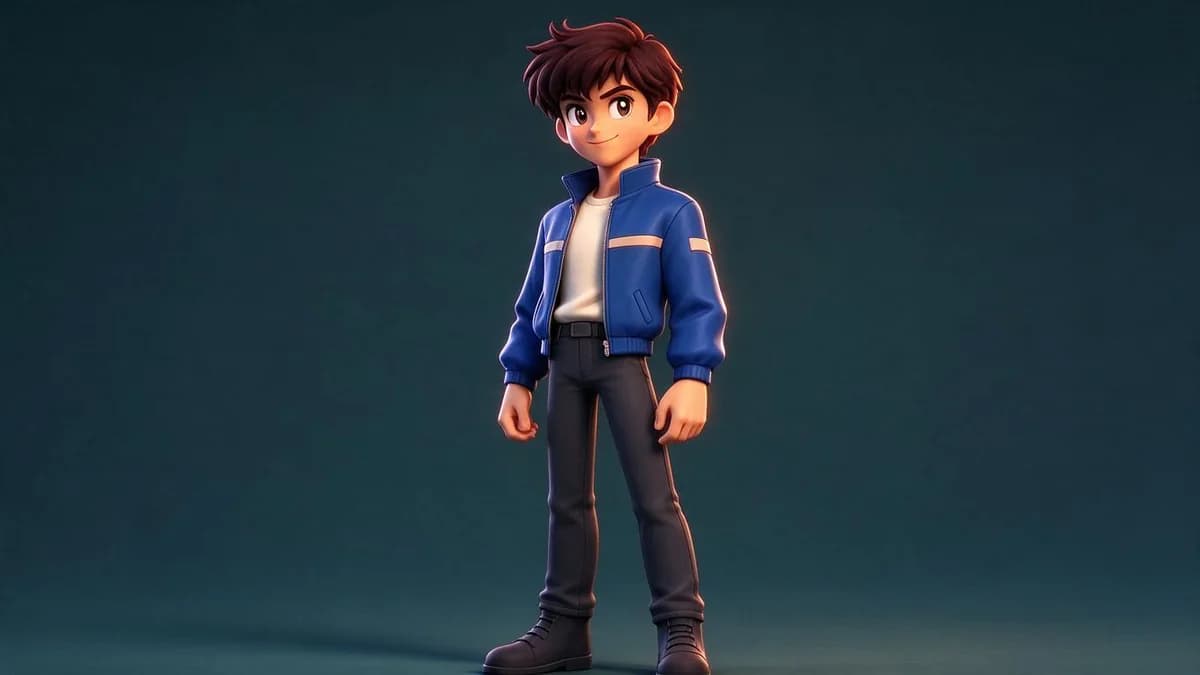
| Walk cycle | "anime full body, character walks three steps toward camera, simple background, static camera, stylised proportions" |
| Action beat | "anime medium shot, character turns sharply and holds, speed lines on the turn, static camera, short motion" |
| 3D toon | "3D anime render, soft rim light, character rotates slightly, camera locked, smooth shading" |
Notice what is absent: no "masterpiece", no "8K", no "trending on ArtStation". Quality tokens do not constrain geometry, and in anime they push the model toward dense illustration that is harder to animate.
Frame size and where it gets watched
| Aspect | Where it lands | What changes |
|---|---|---|
| 9:16 | Reels, Shorts, TikTok | Vertical crop keeps the character centred; leave headroom for hair |
| 1:1 | Feed posts | Less room top and bottom; frame waist-up |
| 16:9 | YouTube, embeds | Most space for background art, which is often the point in anime |
Choose the aspect before you generate. Cropping 16:9 to vertical afterwards cuts the top of the hair off, and hair is one of the things that carries the style.
Choosing a generator
| Check | Why it matters for anime |
|---|---|
| Style adherence across frames | The clip must not drift from cel to semi-real mid-shot |
| Line handling | Soft-line styles survive motion; not every tool supports them |
| Resolution | Flat colour banding is visible at low resolution |
| Duration options | You need 5s more than you need 10s |
| Frame-rate feel | Anime reads as animation at lower frame rates; over-smoothing looks wrong |
| Template support | Some looks are better served by a template than by prompting |
FAQ
Can I turn a photo into an anime video? Yes — convert the photo to an anime still first, inspect it, then animate. Styling and animating in one step gives the model two jobs at once.
Why do the outlines wobble? That is line boil: every frame is redrawn and the model cannot pin the line. Soft linework, shorter clips and a static camera all help.
Is 3D anime easier to animate than 2D? Generally yes, because volume is carried by shading rather than by line. It is harder to style precisely.
How long should the clip be? Five seconds. Ten-second anime clips tend to lose style consistency before they end.
What resolution? 1080p. Flat colour fields show banding far more than photographic footage.
Should I put a studio name in the prompt? It rarely helps. Describe line, shading, era and proportion instead — studio names pull in irrelevant references.
Next
If you are new to image-to-video, start with How to Turn a Photo into a Video. For motion phrasing, AI Video Prompt Guide covers prompt structure, and Image Aspect Ratios and Multiple Inputs explains the framing decisions that keep a character in shot.
Try the anime templates on the templates page.
The checks in this article are easier to run than to describe: the image to video tool takes one still and returns a five-second clip, which is usually enough to see whether the frame holds up.