

Add subtle movement to a still photo
Upload a clear photo and choose the output settings you need. Try blinking, a breeze, or a small camera movement first.
- Wow Video 1.0
- Wow Video 1.0
- Seedance 2.0
- Hailuo 2
- Wan 2.7
- Wan 3.0
- Seedance 2.5
- Vidu Q4
- MiniMax H3
- Hailuo 2.3
- HappyHorse
- PixVerse V6
- Kling 4.0
- Kling 3.0
- Gemini Omni
- Grok Video
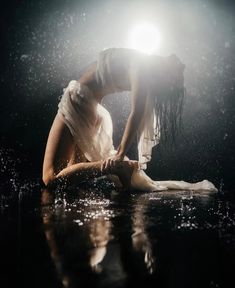









Preserve the original composition
Keep the subject and background clear. Use a small range of movement to make it easier to see how the result follows your photo.
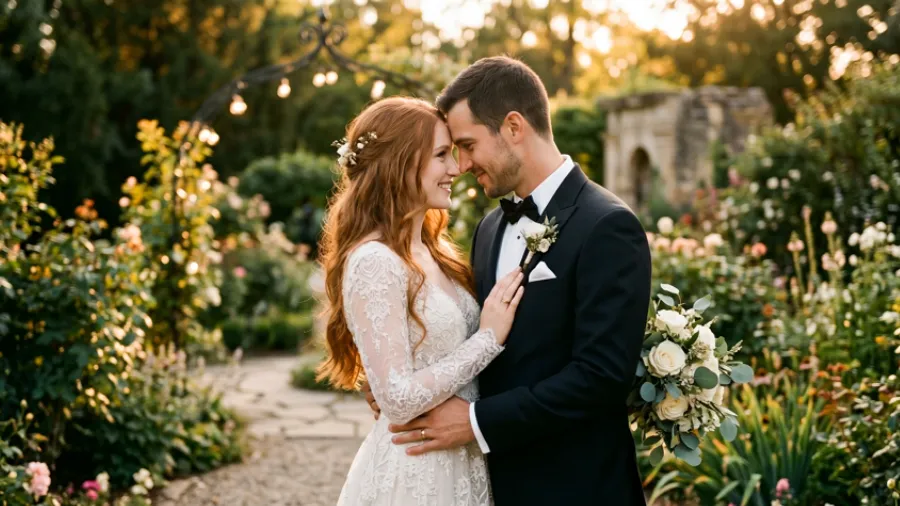
Review the animated photo
Briefly describe what should move, then check that the frame leaves room for the hands and head.
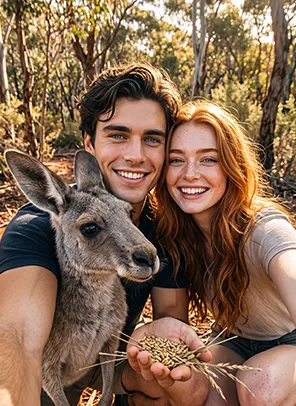
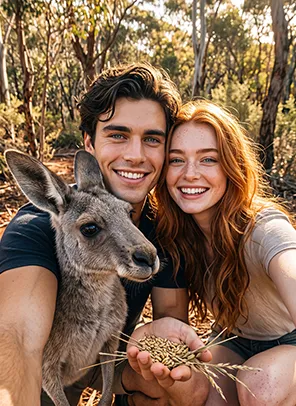
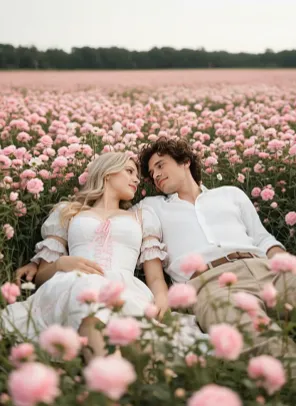
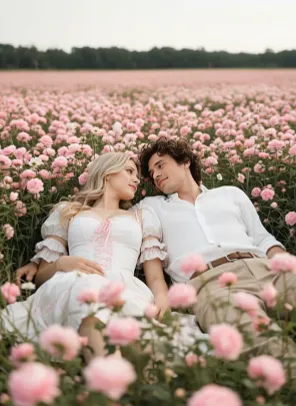
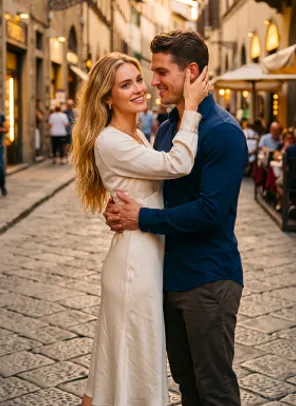
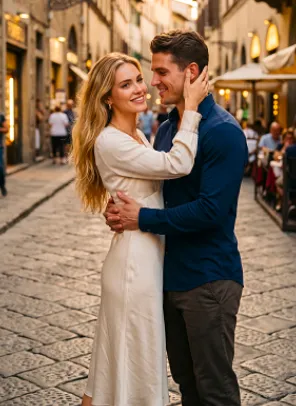
Explore more examples
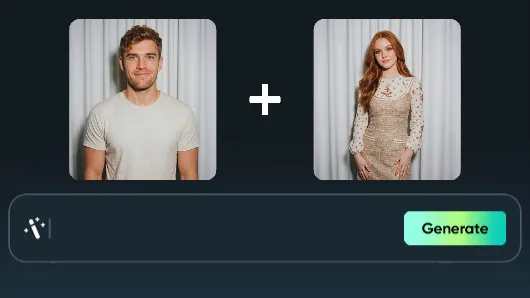
How it works
- 1
Upload the opening photo
Pick a clear image with space around the subject. This tool uses it as the first frame.
- 2
Describe one movement
Try a slight glance up or a slow camera push. State whether the framing or background should stay.
- 3
Choose the specs and generate
Pick the options offered by the model, review the quote and generate. Check the animation in My Creations.
Questions
How is this different from a single reference image?
Animate Photo uses the picture as the opening frame. Use the single-reference mode in Image to Video if the picture should only guide the result.
How can I reduce unintended changes?
Start with a blink or a slight turn. Say whether the background or camera should remain steady.
What if I want movement from another video?
Use Motion Control with a video reference. For a dance routine, open AI Dance.
More tools
Upload a photo and turn it into a short video with natural motion. Add an end frame to control where the shot finishes.
Upload a full-body photo, then pick a dance or upload your own dance video.
Make the person in your photo follow the moves in a video, or swap the person in a video with yours.