
Swap in a new character
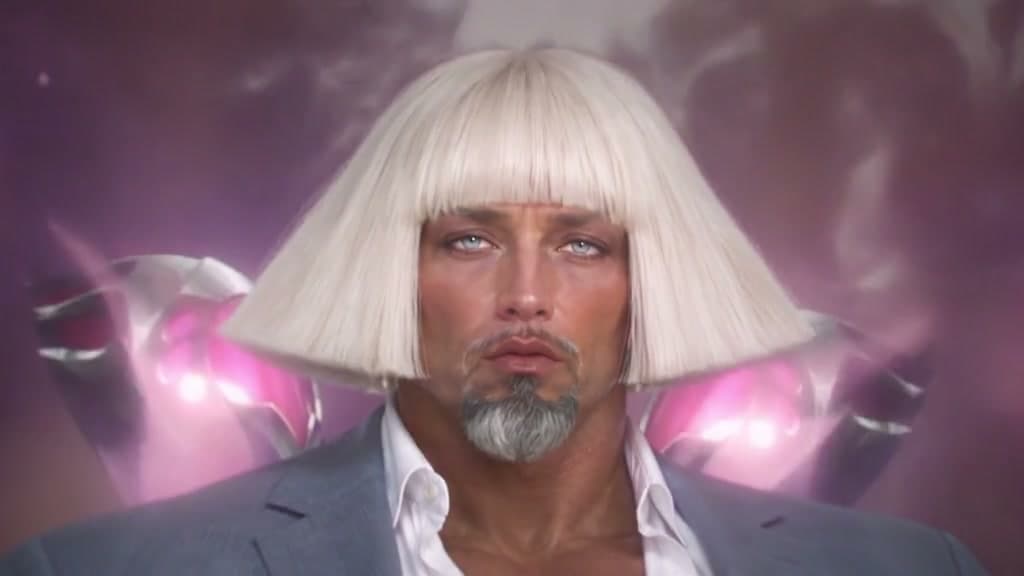
Replace the person in a short clip with a character from your own picture, using the original movement and setting as the starting point.

The AI Video Editor on WowReel starts with a video you already have. Upload an MP4 or MOV clip of up to 15 seconds, or pick one from My Creations, then describe what should change: swap a person for someone else, replace an object, or give the footage a new look. Add up to four reference images to show exactly what you mean, and type @ in the description to point at the video or at one of the images, for example asking the AI to replace the person in @video1 with the character in @image1. Your clip is the basis for the edit, with no separate duration or aspect ratio to choose. Keep to one change per run for the clearest results, and expect to try more than once, because AI edits can be unpredictable.
Add up to four reference images, such as a character, a pet, an outfit or a product, so the AI can see what you want instead of guessing from words. Each image gets its own number, which you can mention in the description as @image1, @image2 and so on.
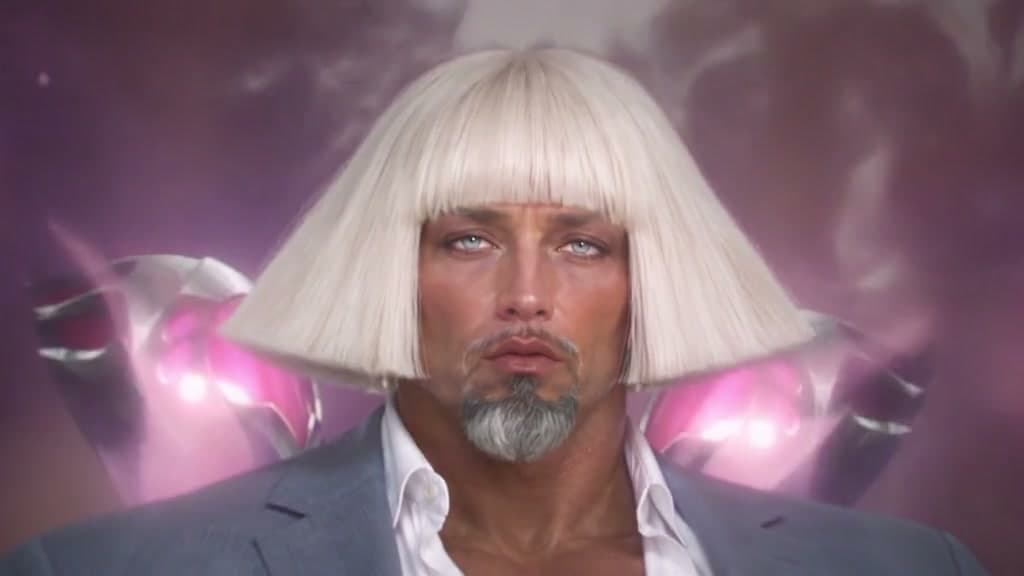
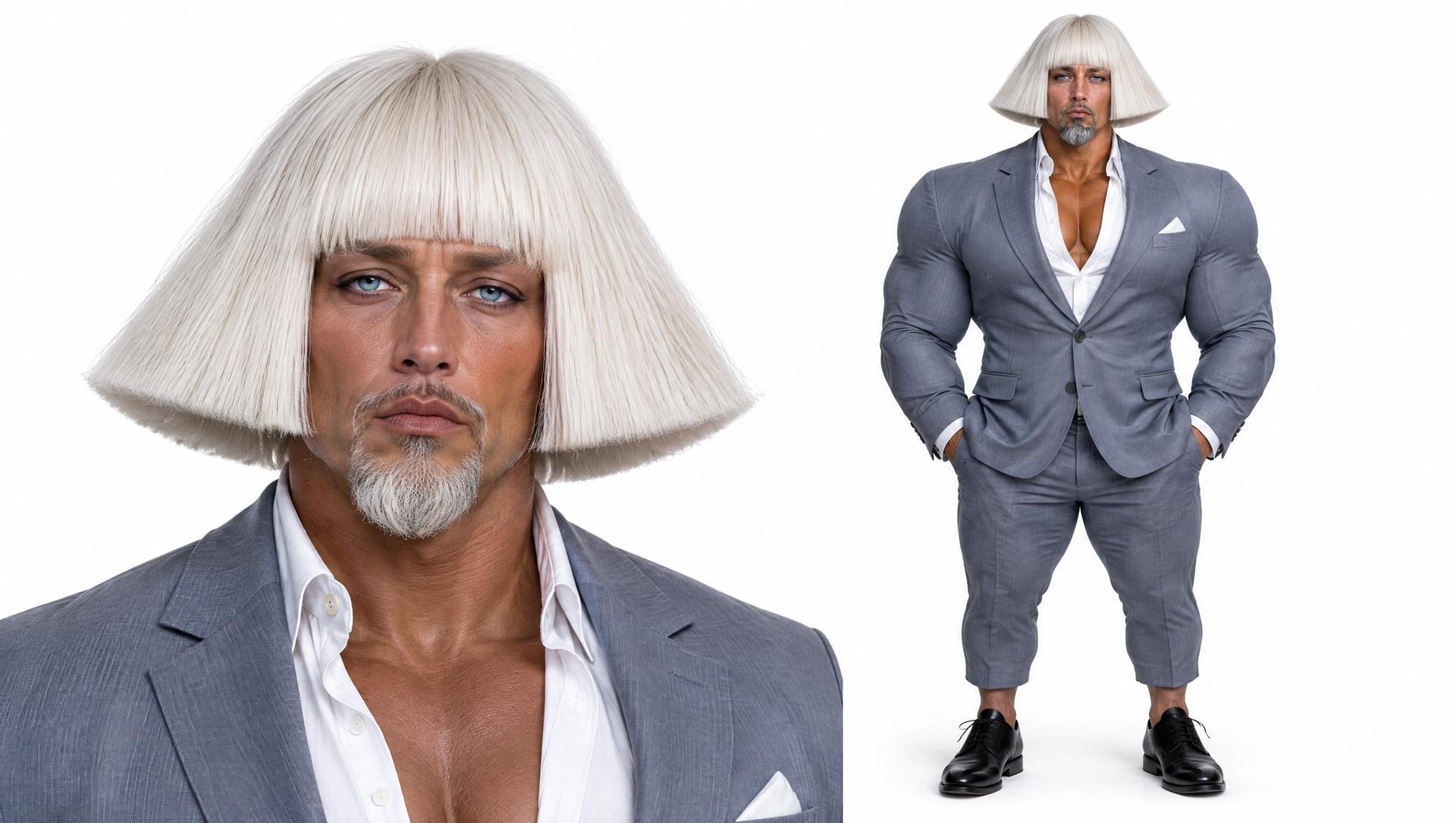
Typing @ in the description opens a short list where the video and each reference image appear as small tags with thumbnails. Pick one to insert it, so a sentence like replace the person in @video1 with the character in @image1 leaves no doubt about which is which.
The clip you upload is the starting point for the edit, with no separate duration or aspect ratio to choose. Before you start, the page shows the input limits that apply, including the longest video accepted for your selected option.
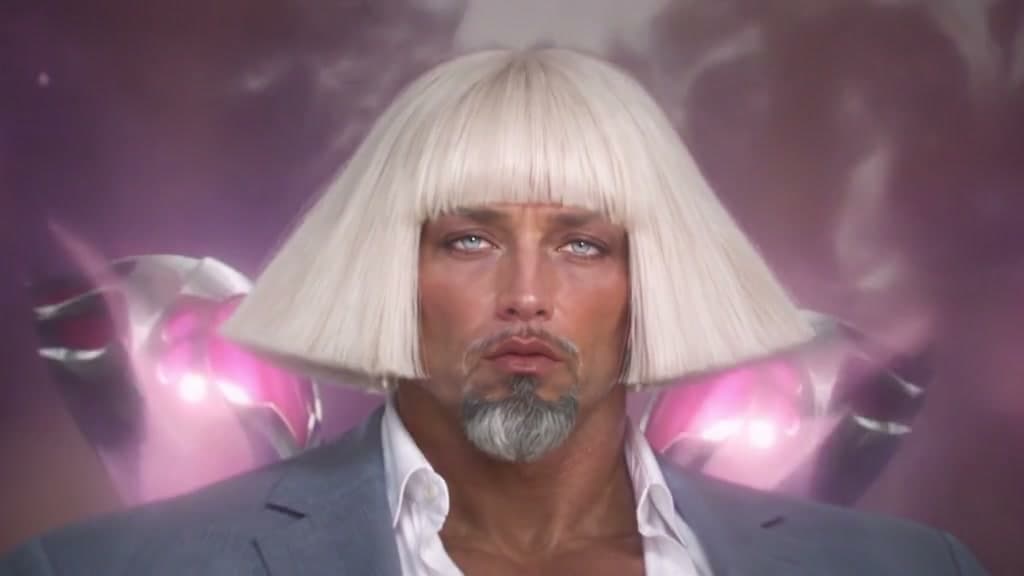
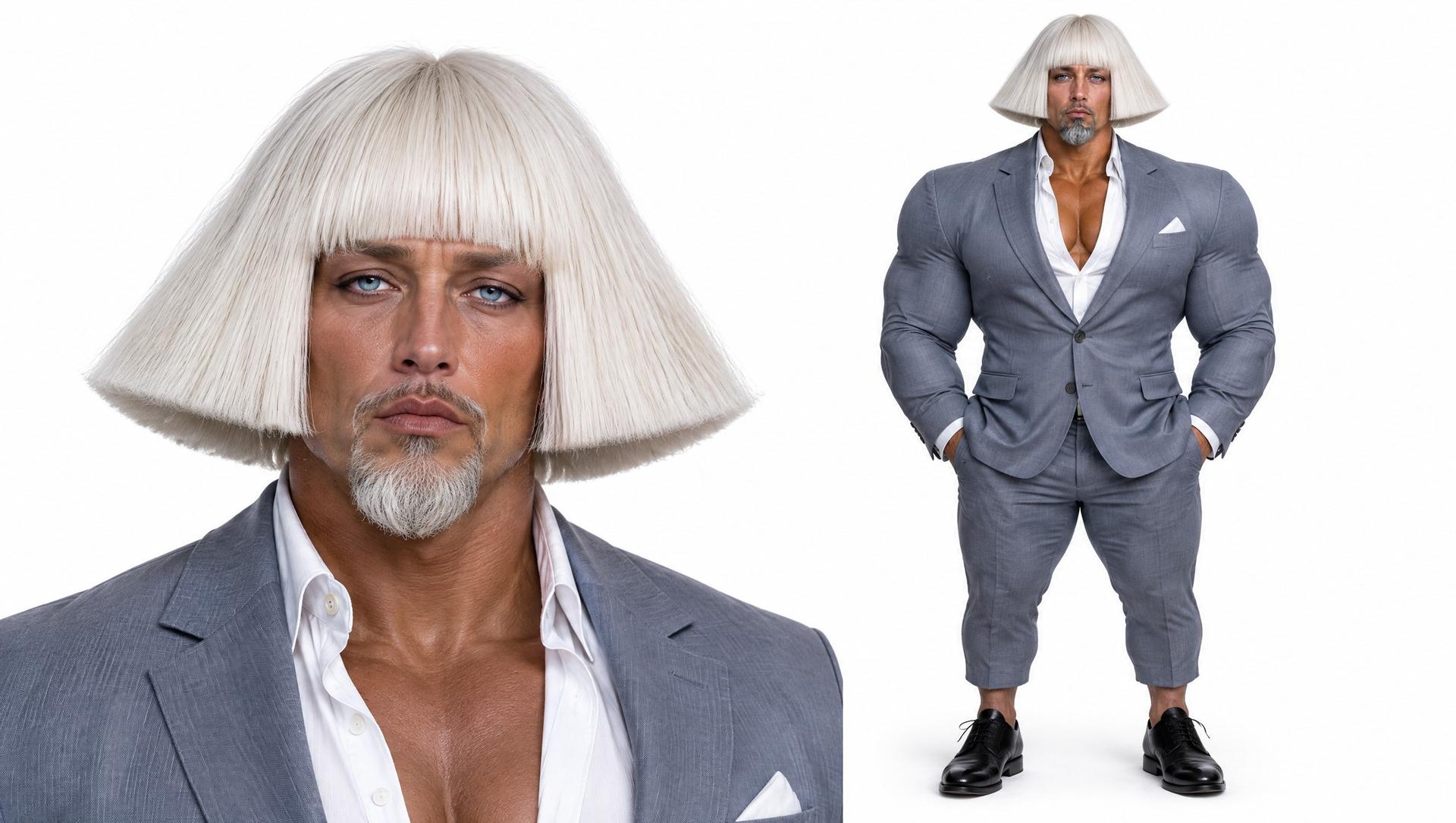
The price depends on the length of your video, rounded up to the next second, and the quality you choose. You see the exact coin price before you confirm. Coins are held during the render, charged once the video is ready, and returned automatically if it fails, unless content review blocks it.
Replace the person in a short clip with a character from your own picture, using the original movement and setting as the starting point.
Add a pet photo as a reference and ask the AI to replace the main subject of a clip with your pet, then share it with family.
Describe a new look, such as hand-drawn animation or a warm vintage tone, and let the AI apply it to a clip you already shot.
Show a product or outfit in a reference image and ask the AI to replace the item in your video, for a quick concept test or a social post.
Add an MP4 or MOV clip of up to 15 seconds, or choose one from My Creations.
Add up to four reference images, then write what to change. Type @ to refer to the video or an image.
Check the coin price, start the render and leave the page. Download the edited video from My Creations.
Up to 15 seconds. In some cases a shorter limit applies, and the page shows the exact one for your edit. Videos also need to meet a minimum size and frame rate, and the page tells you if yours does not fit. There is no separate duration setting to fill in.
It points at your material. @video1 is the video you uploaded, and @image1 to @image4 are your reference images, using the fixed positions shown on the page. Deleting one leaves the other numbers unchanged. Typing @ opens a list so you can pick instead of remembering numbers. Use it to say exactly which person or object should be replaced by which image.
Typical edits are swapping a person or pet for one from your picture, replacing an object, and changing the style or look. The AI works on what is visible in your video, so large changes can be unpredictable. Describe one change at a time, add a reference image where you can, and expect to try more than once.
No, they are optional. A description alone can change a style or an element. Reference images help when you want a specific character, pet, outfit or product, because the AI can see it rather than guess. Use clear pictures with one subject in each, up to four per edit.
The price depends on the length of your video, rounded up to the next second, and the quality you choose, and it is shown before you generate. You own your results and may use them for any lawful purpose, including commercial use, as long as you have the rights to the video and images you upload.
AI Video Editor
 Sample video
 Replace the subject in @video1 with @image1. Keep the camera movement and original audio.
Upload a video and describe your changes. Add reference images when supported; limits depend on the selected model. Your result will appear here after you click Generate.