
AI Hugging Video: Turning Two Photos Into One Five-Second Moment
An AI hugging video lives or dies on the input photos. What to match before you generate, how to describe contact so two faces stay distinct, and which settings to set first.
On this page
# AI Hugging Video: Turning Two Photos Into One Five-Second Moment
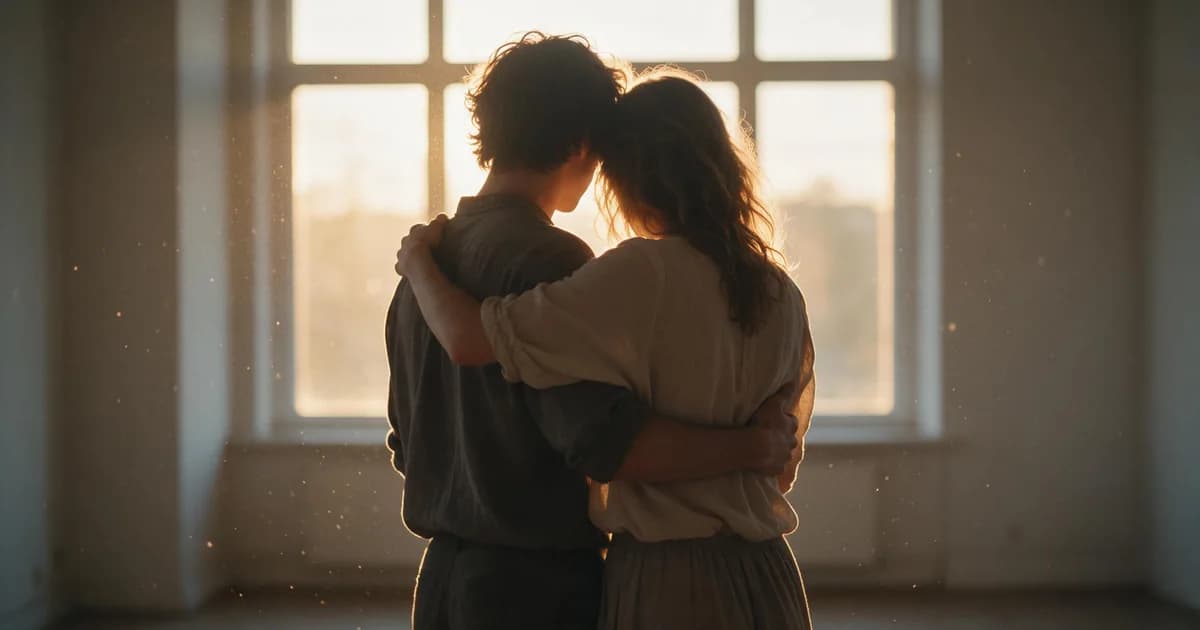
An AI hugging video is two people, one motion, five seconds. On paper it is the simplest thing an image-to-video model can do — no locomotion, no camera move, just two bodies closing a gap. In practice the result is decided almost entirely by what you feed it, and by how precisely you describe the contact.
What the effect actually asks for
Every frame has to hold two identities while they overlap. Overlap is the part of the frame where generative models have the least information to work with, which is why the same tool that renders a flawless portrait can produce something strange here.
There are three ways to get there.
One photo with both people. The most common route, because most people already have a picture of the two of them. The model has to invent the motion for two identities inside one frame.
Two photos, one per person. Better identity retention, because each face comes from its own source — but now the model has to composite: match scale, match light, invent a shared background.
Template motion. A recorded hug that your subjects are mapped onto. Real contact geometry, so the result reads as a hug rather than as drift — though it only works inside the template's framing.
Match the inputs first
This is the section that decides the outcome. Two photos taken at the same height, the same distance, both roughly front-on, will beat a tool fed mismatched frames.
| Input issue | What happens | What to do |
|---|---|---|
| Faces at very different angles | One face rotates to meet the other and identity slips | Use frames where both faces are near front-on |
| Different lighting or white balance | One subject looks pasted in | Pick shots in similar light, or normalise both first |
| Shoulders cropped | Arms get invented, often wrongly | Full upper body with shoulders visible |
| Busy background | Background drifts as the bodies overlap | Plain wall, sky, or heavy blur |
| Hands near faces | Fingers merge | Choose frames with hands low or out of shot |
| Under 1000px on the short edge | Faces soften immediately | Use higher-resolution sources |
Describing contact
Prompts for this genre work as geometry and an end state, not as adjectives.
| Goal | Prompt |
|---|---|
| Gentle approach | "two subjects lean toward each other and embrace, arms around shoulders, static camera, both fully in frame" |
| Reunion | "subject enters from the left and hugs the other, camera static, both visible throughout" |
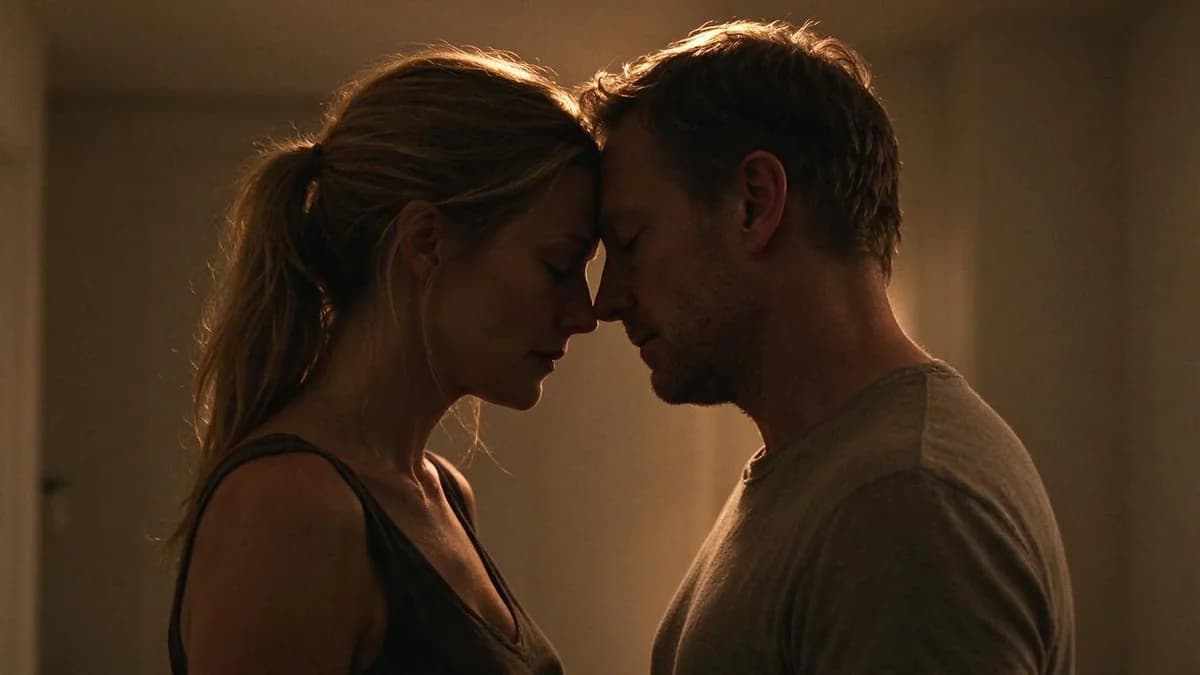
| Forehead touch | "both subjects tilt heads together until foreheads touch, hold, static camera, close framing" |
| Brief kiss | "subjects move closer and touch lips briefly, then separate, static camera, both faces in frame" |
| Hold still | "subjects hold an embrace, subtle breathing only, static camera" |
Three clauses carry most of the weight: state the end state, lock the camera, state who stays in frame. "Romantic, tender, cinematic hug" gives a model four unrelated moods and no positions — it cannot satisfy moods.
Keeping two faces distinct
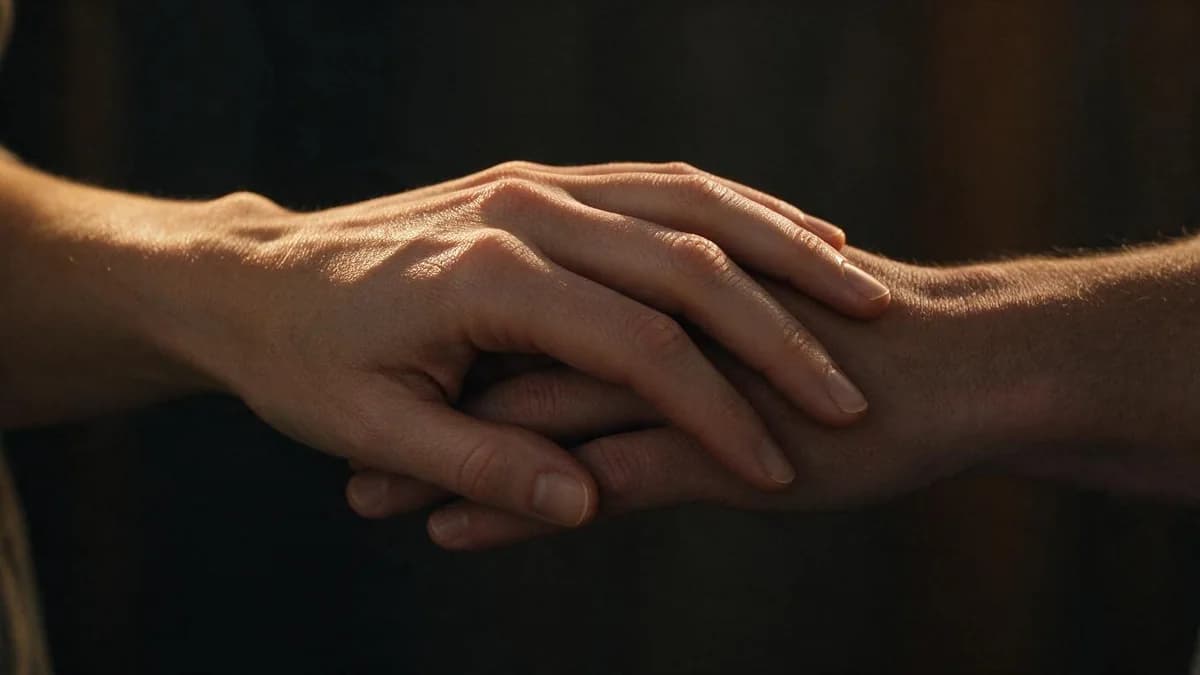
Faces merge when two identities have to occupy adjacent pixels for several frames. Three things prevent it, in order of effectiveness:
- Start from a photo where they are already close. If the source frame has the two faces near each other, the model only has to move them a few millimetres.
- Use a template with real contact geometry. A recorded embrace already encodes how two bodies fit.
- Keep the clip short. Five seconds halves the number of frames where identity has to survive overlap.
The same logic applies to hands: keep them simple, or keep them out of frame. A hand resting on a cheek is the one shot worth simplifying first.
Order of operations
- Prepare two photos that match in angle, distance and light. Crop to the same head size.
- Run a draft at five seconds. Do not start at 1080p.
- Judge one thing only: is the contact moment believable? If faces merge, change the photos, not the prompt.
- Once one clip holds, repeat the same setup at full resolution and download it immediately.
- Keep the source pair. A matched pair carries every clip you make from it.
If a clip reads wrong, change the photos before the prompt — no wording fixes a 40-degree angle mismatch.
Settings that matter here
| Setting | Recommended | Reason |
|---|---|---|
| Duration | 5s first | Identity only has to survive five seconds of overlap |
| Resolution | 720p draft, 1080p final | Draft first, then re-run the exact setup |
| Framing | Full body in frame when the two subjects stand side by side | A waist-up crop leaves hands outside the shared frame |
| Aspect | 9:16 social, 16:9 side-by-side framing | 1:1 only when the crop is tight on faces |
| Camera | Static | Any camera move multiplies overlap errors |
FAQ
Can I make a hug video from a single photo? Yes, and it is the most common route. Two photos hold identity better; a single photo where the two people are already close comes out sharp.
Why do the faces blend together? Because two identities have to occupy adjacent pixels for several frames. Start from a closer source frame, or use a template with real contact motion.
What length should I generate? Five seconds. Ten seconds asks identity to survive twice as many overlapping frames, so earn it at five first.
Which aspect ratio? 9:16 for social, 16:9 when the two subjects stand side by side.
Does the effect work with side profiles? It does, but the merge risk goes up. Three-quarter angles are the sweet spot — enough overlap to read as contact, enough separation to keep both faces legible.
Next
The input-photo rules in How to Turn a Photo into a Video apply directly, and AI Video Prompt Guide covers motion phrasing in more depth. If you are mapping a person into a template rather than generating from scratch, How to Replace a Video Character with a Template is the closer read.
Try the effect on your own photos on the templates page.
The checks in this article are easier to run than to describe: the image to video tool takes one still and returns a five-second clip, which is usually enough to see whether the frame holds up.