
Portrait, Landscape and Multiple Images: A Practical Guide
Understand the difference between source images, preview frames and video output. Learn how to mix image shapes and replace individual references in a multi-image edit.
このページの内容
A wide photograph, a tall portrait and a square reference can all be useful in a video project. Their shapes tell you about the source composition, but they do not automatically determine the shape of the finished video.
The easiest way to avoid confusion is to separate three things: the uploaded image, the frame used to preview it and the output settings offered by the selected tool. This guide walks through those differences and explains how to handle several references together.
The image, the preview and the video are different frames
Your uploaded image has its own width and height. A portrait photo might contain a full person with space above the head; a landscape photo might show a person and a wider environment. That original composition is the information you are supplying.
The editor's preview frame is a consistent space for displaying that information. In WowReel's multi-image layouts, reference previews use square frames and fit the complete image inside them. A single-image layout can use a wider frame while following the same complete-image principle.
The finished video follows the selected model and the available tool or template settings. In a video-edit workflow, the reference clip is the key starting point for the scene. A square reference thumbnail is not an instruction to make a square video.
What you are looking at | What it tells you |
|---|---|
Original uploaded image | The source composition and visible details. |
Preview frame | How the editor displays the source material. |
Output setting | The supported video format or composition choice. |
Reference video | The starting scene, movement and framing for a video edit. |
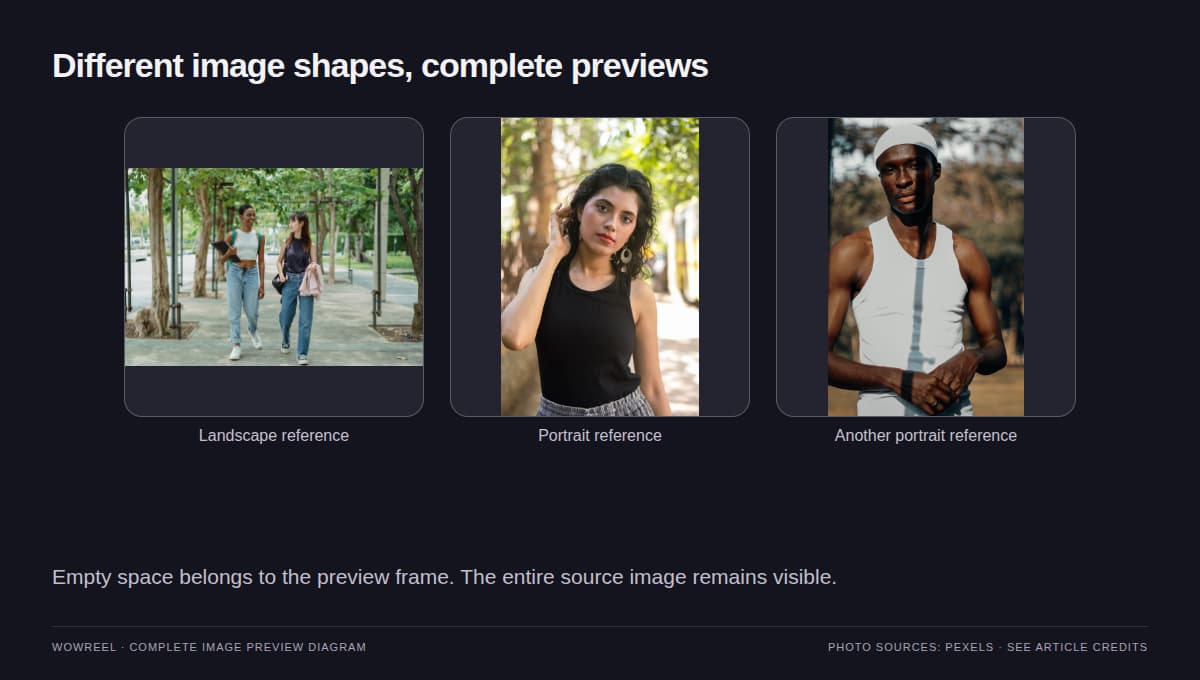
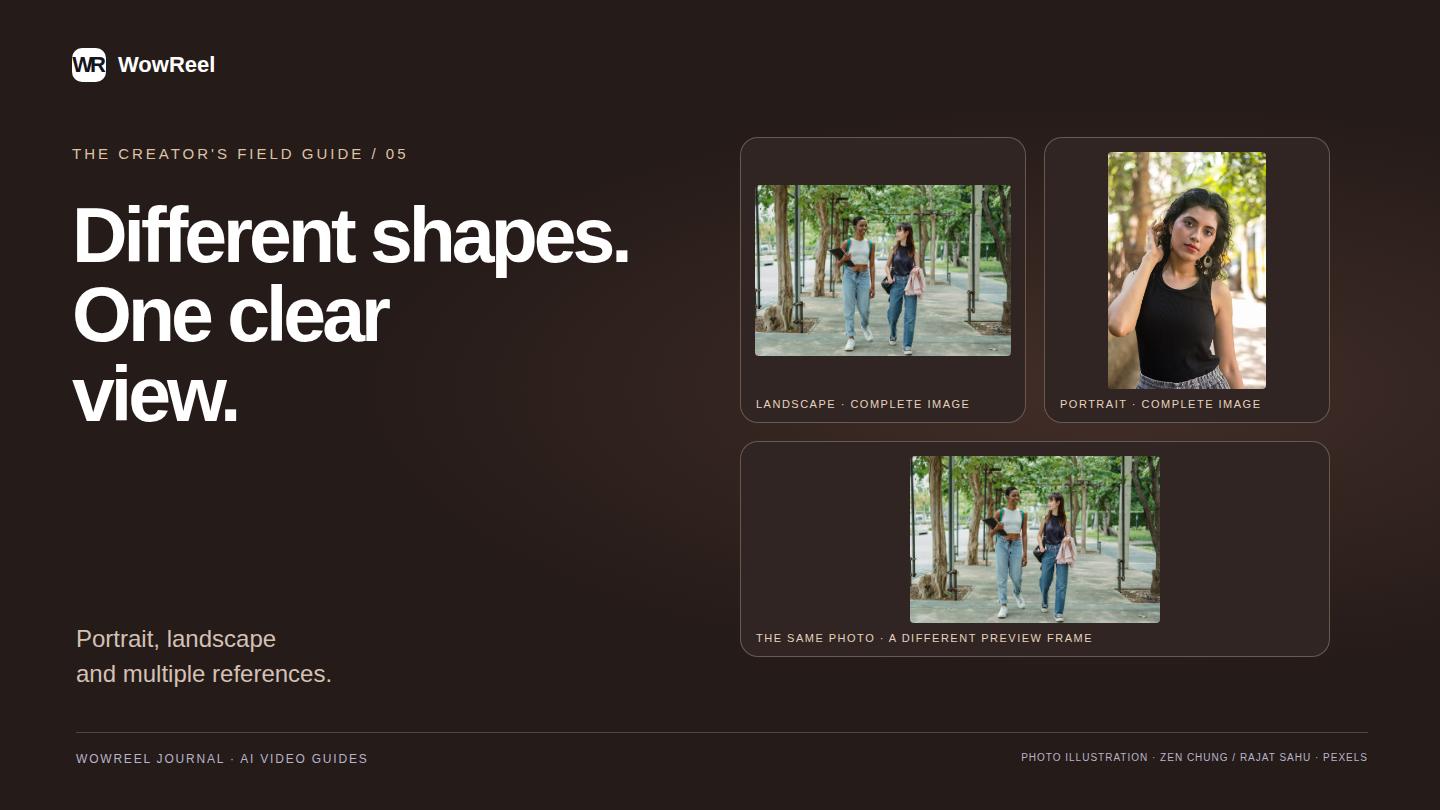
Preview-fitting illustration: the frame can leave space while preserving the full reference image.
Why a complete image can leave empty space
To show a whole landscape image inside a square, the preview fits its width and leaves space above and below. To show a very tall image, it fits the height and leaves space at the sides. The subject can look smaller because the full picture remains visible.
Those spaces belong to the preview layout. They do not mean you uploaded a new image with permanent borders, and they do not promise that the model will preserve the same empty areas in the generated video.
Check the complete subject rather than trying to fill the preview at all costs. If the important face or garment is too small in the original picture, choose a clearer image or prepare a more useful crop before uploading. Do that because of the reference information, not because the preview happens to be square.
Use portrait images when vertical detail matters
A portrait reference can show a full outfit, a long silhouette or the relationship between a face and body. It can be useful for a template in which the subject stands or dances through most of the frame.
Leave enough visible detail to explain the idea. If the reference cuts off the shoes but the scene shows full-body footwork, the model has to invent information that the image does not provide. A taller photograph does not by itself solve that problem; the relevant details still need to be visible.
Avoid assuming that a portrait reference forces a vertical output. Check the tool's actual settings and, for video editing, the reference clip.
Use landscape images when context matters
A landscape image can show the relationship between a subject and a wider setting. It can also contain a clear character reference, provided the intended subject is large enough to read.
Be careful with a wide photo containing several people. If only one is meant to guide a character replacement, choose a clearer reference or explain the intended subject unambiguously. A large file can still provide little useful identity information when the person occupies a tiny part of it.
The square preview keeps the complete landscape visible. It does not automatically extract the central person or convert the photo into a portrait crop.
Mix image shapes in a multi-reference edit
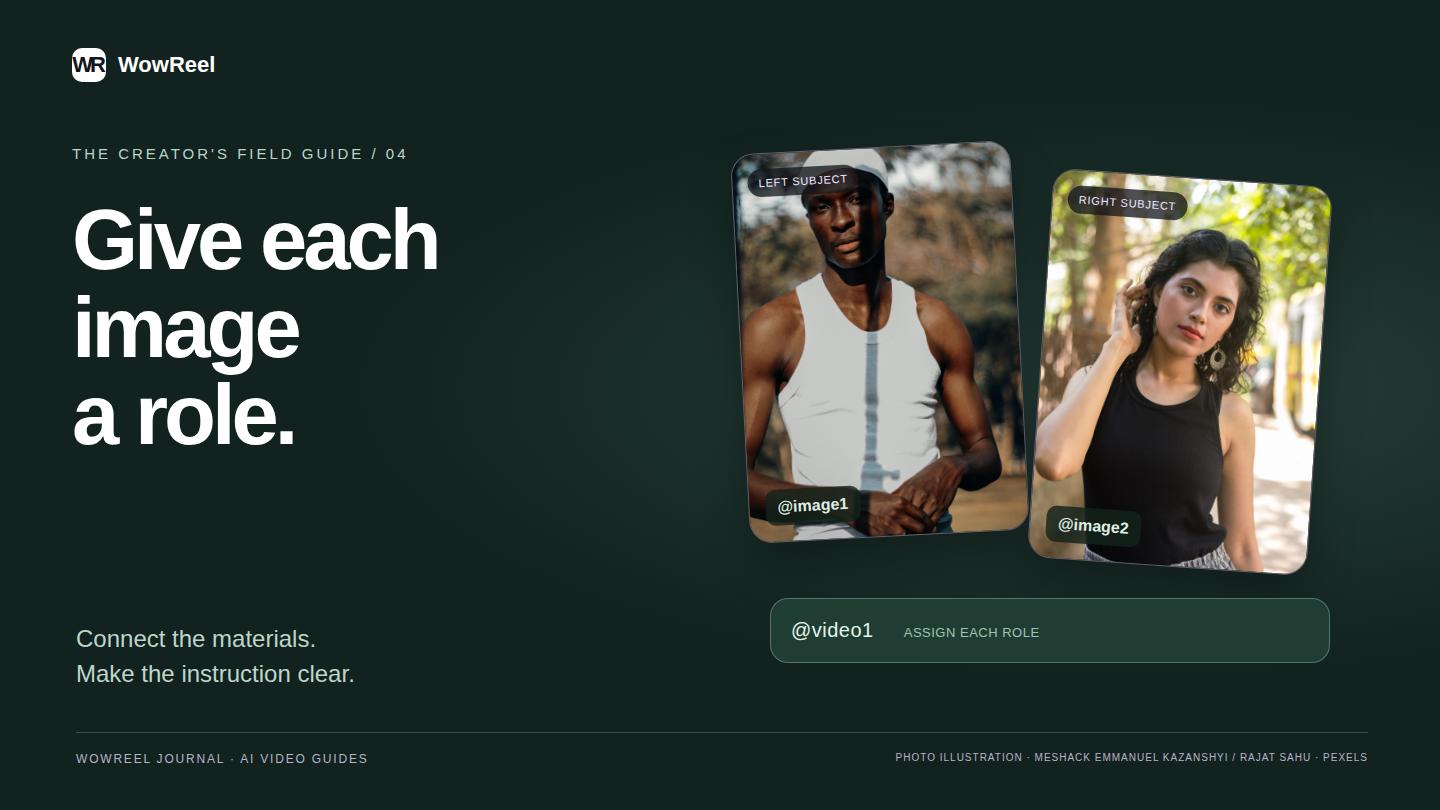
Different reference images do not need matching aspect ratios just to appear together. You can use a tall character photo beside a wider costume reference, while the editor presents both inside consistent frames.
The important question is what each image contributes. If they represent different subjects, use the material names in the prompt references to assign them. If they describe different details of one subject, say which detail comes from which image.
The current standalone video editor accepts up to four optional reference images. Templates show the image slots configured for their scene. Follow the count and controls shown on the page rather than assuming every workflow accepts the same number.
Replace the intended image, then inspect the collection
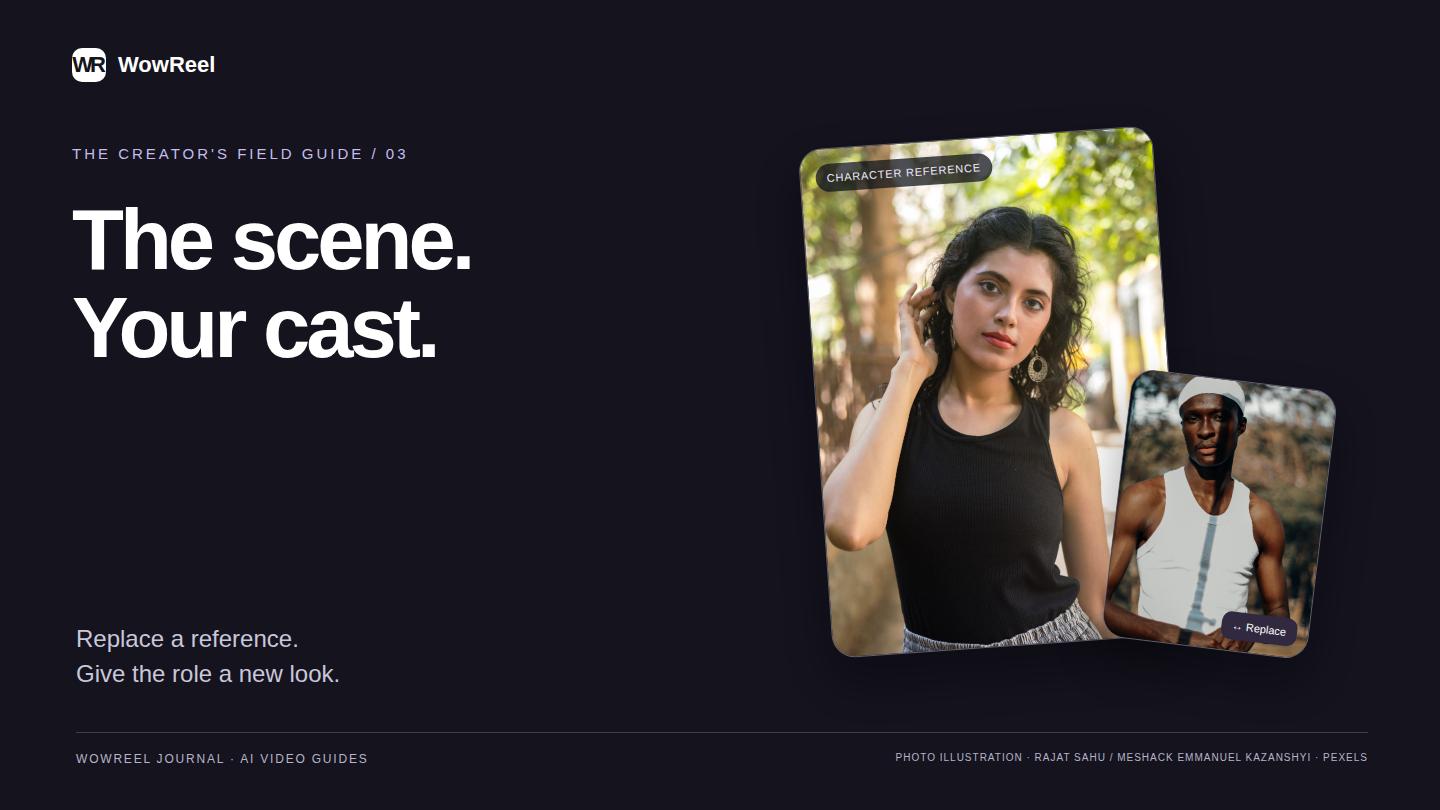
In a template, use the Replace control inside the material you want to change. In a multi-image input, each uploaded reference also has its own replacement control. A replacement should be checked in its own frame before you move to another one.
After changing a landscape image to a portrait image, the preview may gain space at the sides instead of above and below. That is an expected layout change. Check that the full new picture is visible and that the prompt still describes it correctly.
If you remove an image, check its references before generating. If you restore a template default, inspect both the restored thumbnail and any instructions you previously changed.
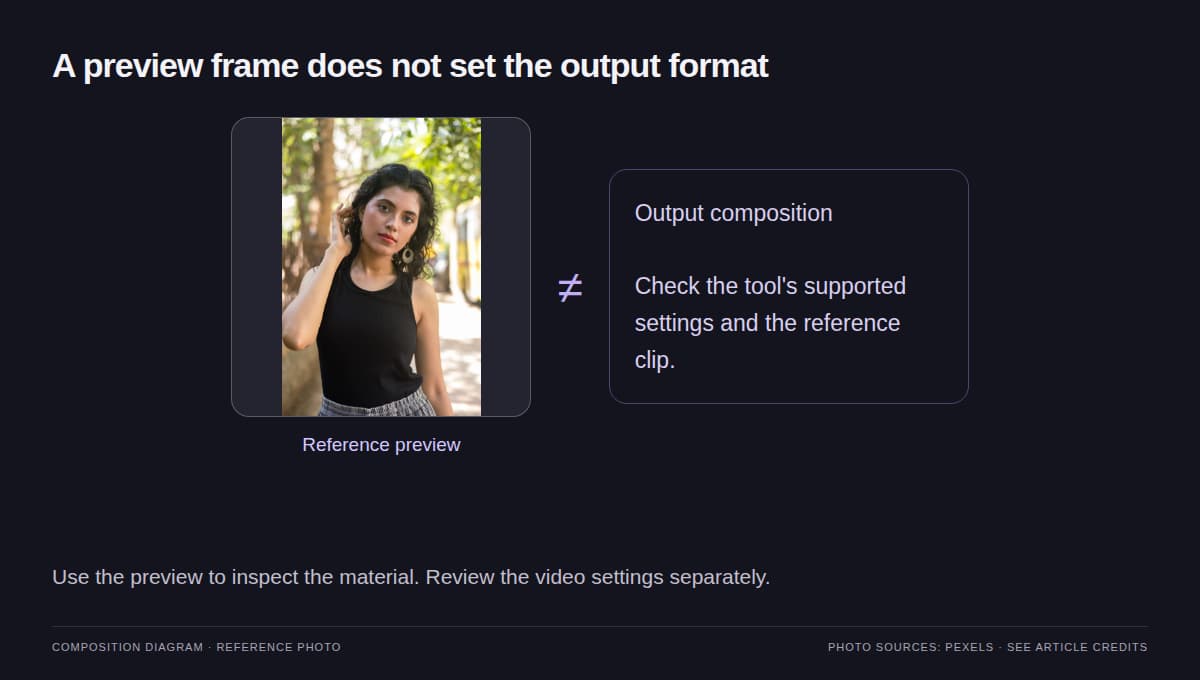
Composition illustration: inspect the uploaded material and the output settings separately.
Check output composition before confirming
Use the settings that the selected model actually offers. Image-to-video and video-edit workflows can expose different choices; a setting available in one tool is not automatically available in another. Prompt text cannot unlock an unsupported output ratio or resolution.
Before confirming, ask three concrete questions: can I see the useful parts of every reference, does each reference have a clear role, and do the video settings fit where I plan to use the result?
After generation, inspect the finished composition as well as the subject details. Complete-image previews help you understand your inputs; generated framing still needs its own review. If you are starting with a preset scene, the character replacement walkthrough connects these checks to the full template workflow.
Frequently asked questions
Does a square preview crop my image?
The preview fits the complete image inside the frame. A wide or tall image can leave empty space while remaining fully visible.
Must all reference images have the same aspect ratio?
No. Mix supported images with different shapes and check that each reference clearly communicates its intended role.
Does the shape of a photo set the video output ratio?
Not automatically. Check the selected tool's supported output settings and, for video editing, the reference clip's framing.