
AI Video Prompt Guide: 6 Cinematic Ideas to Try
Write one readable shot with a simple prompt structure. Explore six original scene ideas, clear camera directions and a checklist for revising your next prompt.
이 페이지에서
A good AI video prompt gives the shot a job. It tells the model where to look, what changes over time and how the moment should feel. You do not need a page of cinematic adjectives to start; a few concrete choices can make an idea much easier to direct.
Below is a practical writing method and six original prompts you can adapt for text-to-video. These examples describe creative intentions, not tested output clips. The available models and settings can change, so use the controls shown in the tool and review the quote before you submit a generation.
Build one shot before planning a sequence
Begin with a single moment that someone could film without cutting. “A shop opens for the morning” is a story; “a hand turns the sign on a small shop door as warm light comes on inside” is a shot. The second gives the model a subject, an action and a visible change.
If an idea needs a close-up, a wide view and a final reveal, write them as separate shots rather than asking a short generation to edit the whole sequence. This also makes it easier to replace one part later without losing the rest of your plan.
Use Text to Video when you want to describe a new scene. If the exact appearance of an existing photograph matters, start with Image to Video instead. A written description of a person or product is not the same as providing its image.
Use a simple five-part prompt
Think in this order: subject, action, setting, camera, light and mood. These are writing choices, not special commands, and different models may interpret them differently. Keep the details that serve the shot and leave out those that do not.
| Part | A useful question | Example detail |
|---|---|---|
| Subject | What should the viewer notice? | A folded paper boat |
| Action | What changes during the clip? | Drifts slowly past a stone |
| Setting | Where does this happen? | A shallow stream after rain |
| Camera | How do we watch it? | Low, stationary close-up |
| Light and mood | What atmosphere supports it? | Soft overcast light, quiet and playful |
Put the main action near the beginning. A long list of style words can bury the thing you actually want to happen. If camera movement is essential, name one clear move: a slow push, a short pan or a fixed viewpoint. Avoid asking the camera to be stationary and orbit the subject in the same shot.
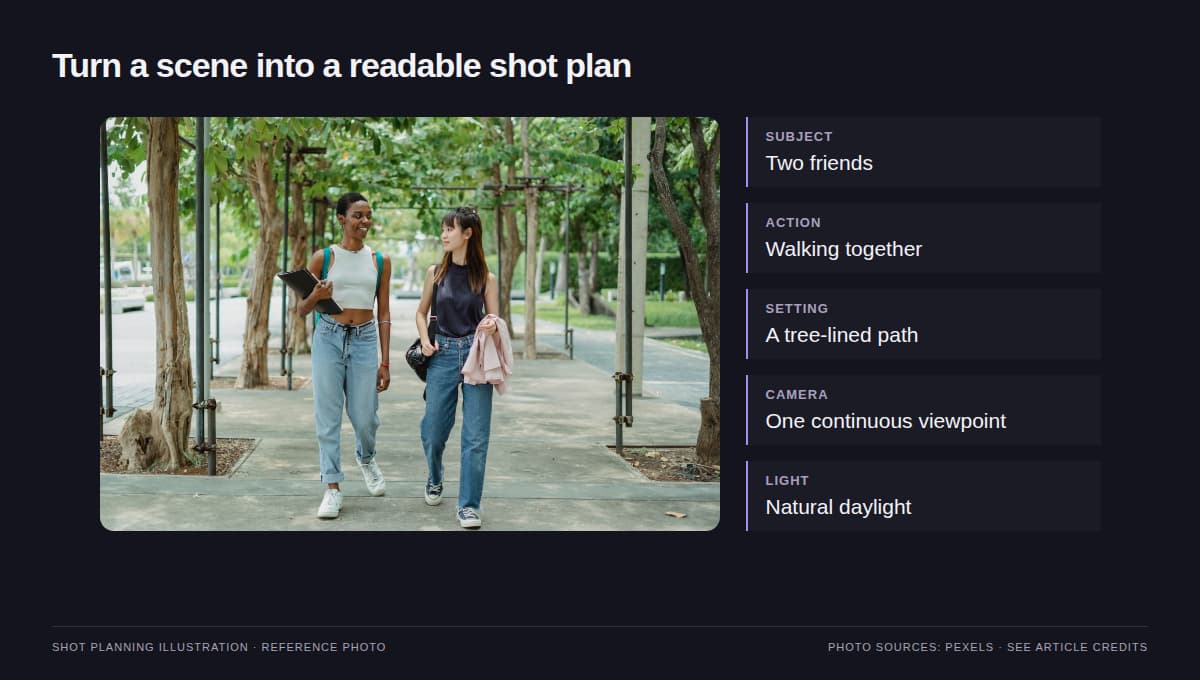
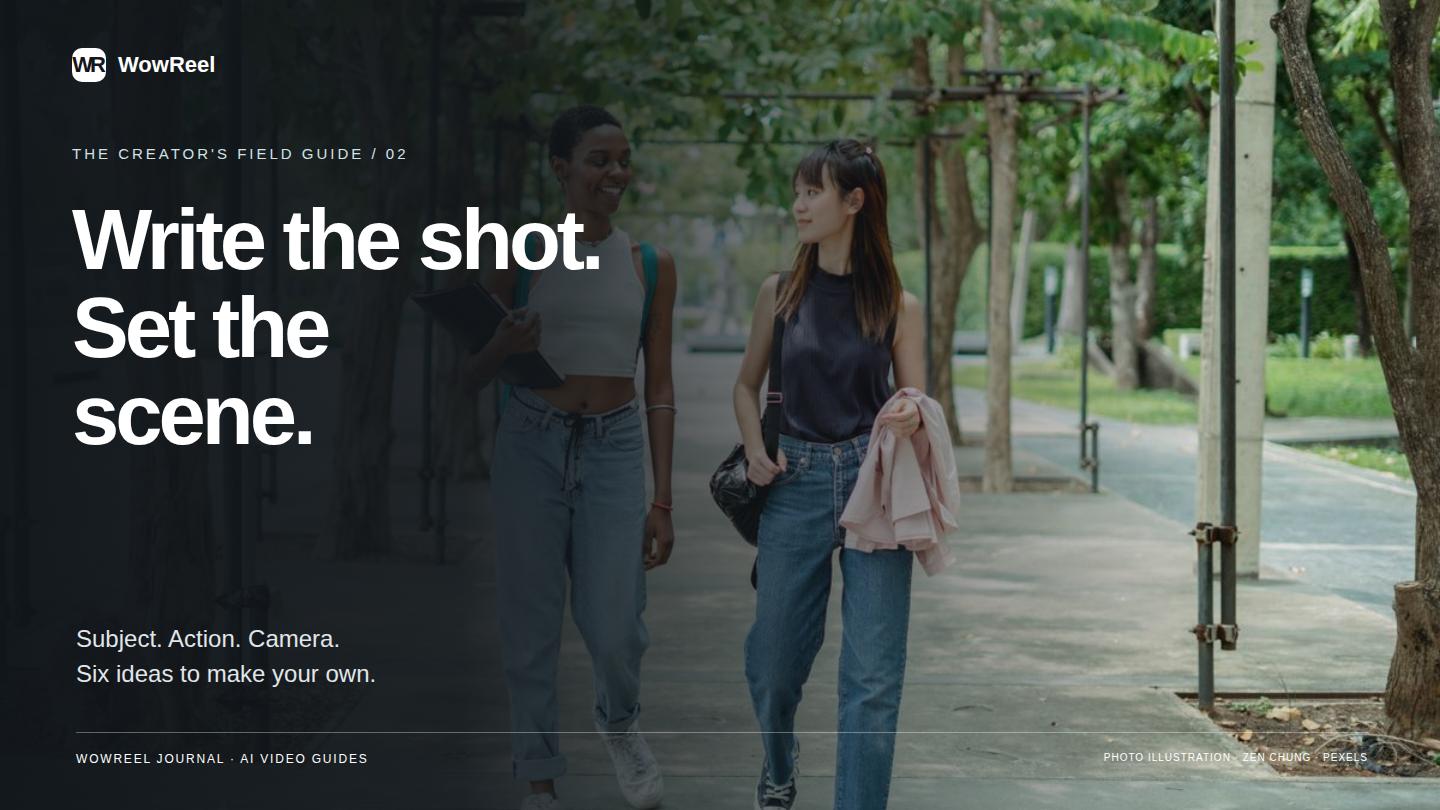
Shot-planning illustration: describe one continuous scene before adding more actions.
Six cinematic prompts to make your own
The following ideas use different subjects and visual rhythms. Replace the details to fit your project, keeping one central action. Treat each prompt as a draft you can edit after reviewing an output, rather than a promise of a particular result.
1. A paper boat after the rain
A small yellow paper boat drifts slowly through a shallow stream and passes a smooth dark stone. Low, stationary close-up at water level. Tiny ripples catch soft overcast light, with wet grass blurred in the background. Quiet, playful atmosphere; one continuous shot.
Why it is readable: the boat has one direction of travel, while the stone provides a stable visual reference. To make a calmer version, shorten the distance traveled instead of adding slow motion and several extra camera instructions.
2. An evening record shop
Outside a small record shop at dusk, a person turns the hanging door sign and steps back inside. The camera stays across the sidewalk in a medium-wide view. Warm light spills through the window onto the cool blue pavement. Unhurried city mood, without a cut.
Keep written signage out of the essential story. If you need exact words, plan to add them in an editor. To adapt the prompt, change the shop's purpose and props while preserving the simple opening-or-closing action.
3. A handmade object on a workbench
A potter's hands carefully place a finished blue bowl on a wooden workbench, then move out of frame. Close-up from a slightly elevated, fixed viewpoint. Side light reveals the glaze and small surface variations. Warm, tactile workshop atmosphere, with the bowl as the focal point.
Hands interacting with objects can be difficult, so inspect the contact points and the bowl's shape. A simpler alternative is to start with the bowl already on the bench and use a short camera push to reveal its texture.
4. A greenhouse waking up
Morning light falls across rows of small plants inside a compact greenhouse. A few leaves sway gently as a narrow door opens in the background. Wide, fixed composition with a clear central aisle. Soft green tones and a fresh, quiet atmosphere, in one continuous shot.
This idea relies on a modest change inside a stable composition. If the whole structure shifts or bends, remove the door action and keep only the leaf movement. Do not add a dramatic day-to-night transformation unless that is the purpose of the shot.
5. A skateboard rolling into view
A skateboard rolls slowly into an empty patch of sun on a concrete courtyard and comes to rest. Low, fixed camera with the board fully inside the frame. Late-afternoon shadows stretch across the ground. Clean, graphic composition and a relaxed urban mood.
The simple background makes the action easy to follow. For a vertical version, describe enough open space around the board and choose the vertical output ratio in the tool; writing “vertical” in the prompt does not replace selecting the appropriate setting.
6. A miniature spaceport made of paper
In a miniature spaceport built from folded colored paper, a tiny shuttle slides slowly out of its hangar. The camera makes a short, gentle sideways move. Visible paper edges and soft studio shadows keep the scene handmade. Curious, cheerful mood, with a restrained stop-motion-inspired feel.
Here the material choice does much of the styling work. Keep the shuttle and set made from the same material so the idea feels coherent. If the sideways move reveals too much new scenery, use a fixed camera for the next version.
Revise the instruction that caused the problem
After viewing a result, describe the mismatch in plain language. “The camera is too busy” suggests changing the camera instruction. “There are too many things happening” suggests removing actions. Adding “better quality” does not explain either problem.
Save the prompt you used, then change one major instruction at a time. Keep the same model, duration and output ratio where possible so the comparison is useful. There is no guarantee that two runs will match, but changing fewer things makes your own decisions easier to evaluate.
Use positive, visible directions first: “the camera stays fixed” or “only the curtain moves.” If the selected model offers a separate negative-prompt field, follow that model's instructions. Do not assume every tool or model supports the same controls.
Check the settings before generating
Choose an output ratio for where the clip will be used, a duration that suits the action and a resolution available for your selected model. A prompt that asks for “4K” does not enable an unsupported resolution. The form settings and displayed quote are the practical choices to check before submitting.
Keep essential lettering, exact logos and final subtitles for an editing step if precision matters. Watch the entire generated clip before sharing it, especially objects touching one another, faces, hands and background lines. Use only material and likenesses you have the right to include.
Ready to write a shot of your own? Open Text to Video, choose one of these structures and replace the scene with your idea. For a workflow built around an existing image, continue with the photo-to-video beginner's guide.
Frequently asked questions
Can I paste these prompts directly into a video tool?
You can use them as starting points. Adjust the scene, choose supported settings in the tool and review the quote before submitting. These are writing examples, not tested output demonstrations.
Does writing “4K” in a prompt set the resolution?
No. Select a resolution supported by your chosen model in the tool. Prompt wording does not enable settings that the model or tool does not offer.
Should I describe several scenes in one prompt?
For a first attempt, plan one continuous shot with one main action. If the idea needs several viewpoints or cuts, write separate shots and combine them later.